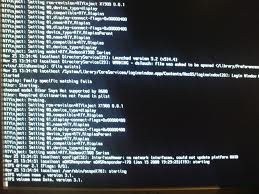
When your current Mac partition configuration does not allow you to perform required operations. For example, when you install firmware updates on Intel-based Mac if it is using non-standard partition scheme like fdisk scheme. You may need to re-partition your Mac hard drive and then carry out Mac Data Recovery.
These situations occur when you attempt to install the firmware updates on a partition that is using fdisk partition scheme, the process gets terminated and you may encounter the following error message:
"Unexpected error occurred (0); unable to upgrade firmware."
To install firmware updates in such situations, you need to change the partition scheme that requires re-partitioning of hard drive.
To resolve this problem, you have two options:
Use external startup disk: Use bootable external disk, like firmware disk which is configured with GUID partition scheme, to start your Mac using Startup Disk preferences. Apply firmware updates during start up. The updates will be applied to Mac, not external disk.
Erase and repartition the hard drive and reinstall Mac: Format your whole Mac hard drive and delete all of the existing partitions. Then repartition the drive using GUID partition scheme and reinstall Mac OS X on it. First method may not work in some situations but the second one will work in most of the situations and solve out your problem.
Although, re-partitioning the hard drive would fix your issues but it also has a downside. All of the data stored on your Mac hard drive will be deleted and you need to carry out Mac Recovery to get your data back.
Mac Data Recovery can easily and effectively be performed using third party Mac Recovery applications. These software are particularly designed to scan the affected hard drive and extract as much data as possible from it. Most of the Mac Data Recovery software come equipped with simple and interactive user interface the lets you perform Do It yourself Mac Recovery in the majority of logical data loss situations.
With read- only and non-destructive design, these applications provide safe and original data recovery. In order to have secure, quick and effective recovery, you are recommended to go for powerful and advanced Mac Data Recovery software. The software should support your combination of file system and Mac OS version.
Mac Data Recovery and Mac Optimization Tools: A free resource for Mac users, Mac Data Recovery & Mac File Recovery free information and tips in case of lost, deleted or corrupted Mac hard drive data. Apple News, Reviews and Mac Software Apps like Mac Partition,Resize Mac, Optimize Mac.
Monday, February 28, 2011
Friday, February 25, 2011
“Out of Range” Error Message on Mac Startup Screen
What happen with your Mac when you start your Mac system, you encounter “Out of Range” error message on startup screen. You see general gray startup screen with Apple logo, but the screen suddenly becomes black. In such situations, your data becomes inaccessible and requires Mac Data Recovery to gain access of it. You might encounter this behavior of your Mac due to any of the following reasons:
You might encounter with Corrupted boot sector or Master Boot Record or the Directory structure corruption. The Mac may be Damaged inside or any kind of Boot sector virus. If any of the situations occur; you may face this behavior of your Mac system and may fall in need of Mac Recovery to overcome the situation.
To solve out this critical problem and carry out Mac Data Recovery, go through the underwritten steps:
Start your system in Safe Mode.
From Apple menu, select System preferences.
Click on Displays to open preferences pane.
Select any refresh rate that your system supports.
Restart your system.
If you have followed these steps, but still can not access your system and getting the same error message, the problem could be serious such as file system corruption and so forth. To resolve such problems, Mac Data Recovery software are required.
Mac Data Recovery software are powerful third party tools that are capable of systematically scanning your hard drive and extracting all of the data from it. Mac Recovery software are generally very easy to use and thus do not demand sound technical skills to achieve absolute, safe and simple Mac Data Recovery.
In order to ensure complete and original Mac Tools, you need to opt for advanced and commanding Mac Recovery software
Mac Data Recovery software uses powerful scanning mechanisms to achieve perfect Mac Recovery. Interactive user interface, read only design, influential scanning mechanisms and live update are some major features which make this Mac Recovery software world class.
The software supports recovery from Mac hard drives, USB drives, FireWire drives, iPods, digital cameras and memory cards. It works well with HFS, HFS+, HFSX, HFS Wrapper and FAT file system volumes.
You might encounter with Corrupted boot sector or Master Boot Record or the Directory structure corruption. The Mac may be Damaged inside or any kind of Boot sector virus. If any of the situations occur; you may face this behavior of your Mac system and may fall in need of Mac Recovery to overcome the situation.
To solve out this critical problem and carry out Mac Data Recovery, go through the underwritten steps:
Start your system in Safe Mode.
From Apple menu, select System preferences.
Click on Displays to open preferences pane.
Select any refresh rate that your system supports.
Restart your system.
If you have followed these steps, but still can not access your system and getting the same error message, the problem could be serious such as file system corruption and so forth. To resolve such problems, Mac Data Recovery software are required.
Mac Data Recovery software are powerful third party tools that are capable of systematically scanning your hard drive and extracting all of the data from it. Mac Recovery software are generally very easy to use and thus do not demand sound technical skills to achieve absolute, safe and simple Mac Data Recovery.
In order to ensure complete and original Mac Tools, you need to opt for advanced and commanding Mac Recovery software
Mac Data Recovery software uses powerful scanning mechanisms to achieve perfect Mac Recovery. Interactive user interface, read only design, influential scanning mechanisms and live update are some major features which make this Mac Recovery software world class.
The software supports recovery from Mac hard drives, USB drives, FireWire drives, iPods, digital cameras and memory cards. It works well with HFS, HFS+, HFSX, HFS Wrapper and FAT file system volumes.
Wednesday, February 23, 2011
Mac Data Loss and Mac File Recovery

Macintosh uses advanced file systems for effective organization and better safety of your data. These file systems include HFS (Hierarchical File System), HFS+, HFSX and HFS Wrapper. These entire file systems are based upon the principle of providing ease of use to Mac users. Although, Mac OS is considered as the safe operating system but like other operating systems it may also fail at some point of time and may cause data loss.
Mac file systems might suffer from logical damage due to virus attack, improper system shutdown or other reasons. In the majority of cases, damage to the file system and operating system results into the severe data loss situations. Along with these causes, Mac data loss may also occur due to:
You may lose your most precious and business critical data due to virus attack. Most of the viruses attack on the file system and then damage it. Improper system shutdown may harshly damage your computer and may result into data loss.
Incapability of Mac OS to boot due to boot loader or volume header corruption. Corrupted MDB (Master Directory Block) doesn’t start some of the system services that are required to access your stored data. Though, data loss is a very critical situation but it could be handled very easily using Mac Data Recovery software.
These are third party tools that are specifically designed to meet different users’ Mac Recovery requirements. Mac Data Recovery software are capable of scanning the whole hard drive systematically and then locating all your lost, missing and inaccessible data and then recovering it.
Mac Recovery software are very easy to use and allow you to have quick and simple Mac Data Recovery on your own. Mac Recovery tool can recover your lost data from Mac hard drive, USB drive, Memory card, FireWire drive and iPod. It supports Mac Data Recovery from HFS, HFS+, HFSX, HFS Wrapper and FAT file system volumes
Monday, February 21, 2011
When Disk Image Gets Corrupted in Mac

In Mac the disk image is a file that contains all of the contents and the structure of your storage device. Creating disk image is the most convenient method of backing up your precious data stored on the hard drive. There are several different file formats used to create the image of hard drive in Mac and .DMG is the most popular among them.
A .DMG (short for Disk Image) file allows you to have safe password protection and file compression and thus serves both file distribution and security functions. When you open the .DMG file, it is mounted as a drive in Finder. You can easily create .DMG files using tools that are included in Mac OS such as Disk Utility in Mac OS X 10.5, 10.4 and 10.3. You can also manage the .DMG files through command line using hdiutil tool.
Creating disk image is the best option to prevent data loss but sometimes when you try to mount the disk image for accessing data from it, you might encounter the following error message: "The disk image you are opening may be damaged and could damage your system. Are you sure you want to open this disk image?"
Mac OS X detects the damaged disk image before mounting it as the damaged image could results into the data loss. In such situations, you can not restore your data from the .DMG file and thus you need to go for Mac Data Recovery to fix the problem. Mac Data Recovery is the process of scanning your hard drive for extracting the missing, lost or inaccessible data from it.
It is potential in most of the data loss situations and helps you to save you business critical and personal data. You can perform Mac Data Recovery in an easy, safe, quick and automated way using powerful and advanced Mac Recovery software such as Mac Data Recovery. This Mac Recovery software is capable of fixing most of the logical Mac data loss situations.
Wednesday, February 16, 2011
Recover Data from Unbootable MacBook
You have your Mac in configured status but sometimes when you start your MacBook, it does not boot. All you see when you press power button is the gray screen with a spinning wheel and an Apple logo. This problem generally occurs when you change the system preferences.
If you have changed the system preferences incorrectly before shutting down your MacBook, you may face such kind of behavior. In such situations, all of your precious data becomes inaccessible and thus you need to fix it as quickly as possible.
You can try following things to solve out this problem:
Perform Safe Boot by pressing shift key during startup.
Boot your system in Single User mode by pressing ‘command + s’ keys.
Try to boot your MacBook in Verbose mode using ‘command + v’ keys.
Use Disk Utility from Mac OS X Install disk to verify the drive.
If any of the these solutions does not work, then you need to go for Mac Data Recovery. It is the process of scanning your Mac hard drive and extracting lost data from it.
Mac Data Recovery can easily be performed using Mac Recovery software. Most of the Mac Data Recovery software are downloadable from Internet or come in box version that requires another Mac system to install the software and connect your hard drive to it for scanning and recovering data.
If you do not have another Mac computer, they using these software is not possible. In such situations, you should go for boot DVD of Stellar Phoenix Macintosh Data Recovery software.
You need to just boot your MacBook using boot DVD and after software’s License Agreement you will be directed to recover options screen. This Mac Recovery software is very easy to use and performs safe Mac Data Recovery due to read-only and non-destructive conduct.
If you have changed the system preferences incorrectly before shutting down your MacBook, you may face such kind of behavior. In such situations, all of your precious data becomes inaccessible and thus you need to fix it as quickly as possible.
You can try following things to solve out this problem:
Perform Safe Boot by pressing shift key during startup.
Boot your system in Single User mode by pressing ‘command + s’ keys.
Try to boot your MacBook in Verbose mode using ‘command + v’ keys.
Use Disk Utility from Mac OS X Install disk to verify the drive.
If any of the these solutions does not work, then you need to go for Mac Data Recovery. It is the process of scanning your Mac hard drive and extracting lost data from it.
Mac Data Recovery can easily be performed using Mac Recovery software. Most of the Mac Data Recovery software are downloadable from Internet or come in box version that requires another Mac system to install the software and connect your hard drive to it for scanning and recovering data.
If you do not have another Mac computer, they using these software is not possible. In such situations, you should go for boot DVD of Stellar Phoenix Macintosh Data Recovery software.
You need to just boot your MacBook using boot DVD and after software’s License Agreement you will be directed to recover options screen. This Mac Recovery software is very easy to use and performs safe Mac Data Recovery due to read-only and non-destructive conduct.
Tuesday, February 15, 2011
Corrupt iPod Can Not Be Synchronized With Mac Machine
Apple iPod is the most popular and widely used portable media player from Apple Inc. There are several generations of iPod, which include iPod Touch, iPod Shuffle, iPod Nano, and iPod classic. It lets you store your favorite movies, videos, songs, pictures, and Podcasts on iPod disk.
You can manage your iPod files using iTunes application that can be installed on both Windows and Mac OS X machines. However, in some situations, your iPod may become inaccessible and you need to opt for Mac iPod recovery to get your data back.
Under some situations, you may find that your iPod is inaccessible. At the same time you may also encounter the following error while accessing data from your iPod disk-
“The iPod cannot be synced. The required file is locked”
In order to sort out this problem, you need to identify the ground of this issue and fix it using Mac Undelete software.
Root of the problem-
You may run across this behavior of iPod due to disk corruption. Corruption can be due to virus infection, improper restoration of iPod and many more.
Resolution-
Try the below iPod recovery Mac solutions to sort out this problem with iPod-
• If you have a read-only music folder in iTunes, then iPod can not sync to it. Thus this problem can be fixed by un-checking the read-only option.
• Before you start the sync process, you should unlock the iPod.
• Upgrade to the latest version of iTunes and if required you need to reinstall the iTunes application.
• If none of the above methods work, you can try restoring the iPod. However, you should use this option only as a last resort. This option is like formatting a hard drive or any other storage media. Restoring the iPod disk removes all the data from it and causes serious data loss.
• After restoring the iPod, you need to restore data from the most recent backup. For complete recovery of your precious data, you must have an updated backup.
In case you do not have an updated backup in place, then you need to opt for third-party data recovery Mac software. Such applications are particularly designed to perform in-depth scan of whole iPod disk and extract all inaccessible or lost data from it
You can manage your iPod files using iTunes application that can be installed on both Windows and Mac OS X machines. However, in some situations, your iPod may become inaccessible and you need to opt for Mac iPod recovery to get your data back.
Under some situations, you may find that your iPod is inaccessible. At the same time you may also encounter the following error while accessing data from your iPod disk-
“The iPod
In order to sort out this problem, you need to identify the ground of this issue and fix it using Mac Undelete software.
Root of the problem-
You may run across this behavior of iPod due to disk corruption. Corruption can be due to virus infection, improper restoration of iPod and many more.
Resolution-
Try the below iPod recovery Mac solutions to sort out this problem with iPod-
• If you have a read-only music folder in iTunes, then iPod can not sync to it. Thus this problem can be fixed by un-checking the read-only option.
• Before you start the sync process, you should unlock the iPod.
• Upgrade to the latest version of iTunes and if required you need to reinstall the iTunes application.
• If none of the above methods work, you can try restoring the iPod. However, you should use this option only as a last resort. This option is like formatting a hard drive or any other storage media. Restoring the iPod disk removes all the data from it and causes serious data loss.
• After restoring the iPod, you need to restore data from the most recent backup. For complete recovery of your precious data, you must have an updated backup.
In case you do not have an updated backup in place, then you need to opt for third-party data recovery Mac software. Such applications are particularly designed to perform in-depth scan of whole iPod disk and extract all inaccessible or lost data from it
Wednesday, February 9, 2011
Mac OS X Refuses to Boot in Safe Mode

Mac OS X operating system has various booting modes, which include Normal boot mode and Safe boot mode. Safe Boot is a special system troubleshooting boot mode, which is available with Mac OS X 10.2 and later versions. If your system is not booting up properly and you are unable to access your precious data, Safe Mode may help you. However, in some situations, it may not help you fix the problem and you run across data loss situations. At this point, Mac data recovery becomes need of hour.
When you boot Mac OS X system in Safe Mode, the operating system disables fonts, compels directory check, loads only the required kernel extensions, disable startup items, and login items. It helps the operating system boot properly and gives an option to resolve the problem. Mac OS X operating system starts automatic system checking and repair when you boot the system in safe mode.
Under some situations, your Macintosh computer may shutdown improperly when you try to boot it in Safe Mode. In such cases, the system remains unbootable and you can not extract your significant data from it. The problem usually occurs if any of the Mac data structures is damaged.
In case the boot process fails, you need to format the Mac OS X hard drive and reinstall the operating system. It replaces the damaged or faulty data structures of your Mac machine.
Hard drive formatting can fix most of the hard drive problems. The newly installed operating system is usually free from all kinds of data structure errors. However, the major drawback of this process is complete data loss. Formatting removes all the contents of the disk. This behavior puts you in need of Mac data recovery solutions.
At this point of time, you are required to restore lost data from the most recent backup. Backup is the most efficient Apple OS X recovery solution. In order to ensure absolute Mac file recovery, you must have an updated and valid backup in place. An old backup can cause serious problems.
When all your attempts fail, Mac recovery software becomes essential. The third-party applications are particularly designed to perform thorough scan of entire disk using advanced scanning techniques.
Such tools are incorporated with interactive user interface to let you recover lost data in a safe way, without demanding sound technical skills
Wednesday, February 2, 2011
Catalog File Corruption in Mac
Catalog File is a Mac system file that is used by HFS (Hierarchical File System) File Manager to keep information about hierarchy of the files and directories on Mac volume.
The catalog file is ordered as B-tree file and thus consists of header node, leaf nodes, index nodes and map nodes (if necessary). The allocation block number of first file extent of catalog file is stored in Master Directory Block or MDB.
When you mount the volume, the stored information is copied in the volume control block of that volume. From header volume, File Manager could access node number of the root node of catalog file and from root node, File Manage could find whole catalog file.
A unique CNID (Catalog Node ID) is assigned to the every node of catalog file. For files CNID is file ID and for directories its directory ID. For a given directory or file, the parent ID is CNID of parent directory. When operating system accesses files or data from HFS file system volume, it first interacts to the catalog file and gathers complete information about the hierarchy.
But sometimes when you try to access data from your hard drive, you may get an error message similar to the following:
“Verifying volume
Checking HFS Plus volume.
Invalid record count
Catalog file entry not found for extent
The volume needs to be repaired.”
After this error message, you can not access data from Mac volume and thus face the critical situations of data loss.
You may encounter this problem because of corruption to the catalog file. Due to same, operating system can not file the required information to read data from volume. To fix this problem, you need to go for Mac Data Recovery. You can carry out Mac Data Recovery in an easy and straightforward way using third party Mac Recovery software.
The catalog file is ordered as B-tree file and thus consists of header node, leaf nodes, index nodes and map nodes (if necessary). The allocation block number of first file extent of catalog file is stored in Master Directory Block or MDB.
When you mount the volume, the stored information is copied in the volume control block of that volume. From header volume, File Manager could access node number of the root node of catalog file and from root node, File Manage could find whole catalog file.
A unique CNID (Catalog Node ID) is assigned to the every node of catalog file. For files CNID is file ID and for directories its directory ID. For a given directory or file, the parent ID is CNID of parent directory. When operating system accesses files or data from HFS file system volume, it first interacts to the catalog file and gathers complete information about the hierarchy.
But sometimes when you try to access data from your hard drive, you may get an error message similar to the following:
“Verifying volume
Checking HFS Plus volume.
Invalid record count
Catalog file entry not found for extent
The volume needs to be repaired.”
After this error message, you can not access data from Mac volume and thus face the critical situations of data loss.
You may encounter this problem because of corruption to the catalog file. Due to same, operating system can not file the required information to read data from volume. To fix this problem, you need to go for Mac Data Recovery. You can carry out Mac Data Recovery in an easy and straightforward way using third party Mac Recovery software.
Stellar Releases Two new utilities - Defrag Drive & Clone Drive
Stellar Data Recovery announces the release of two new utilities for Macintosh: Clone Drive and Drive Defrag.

The former as the name suggests allows easy cloning a volume or disk drive. This application allows you to do this on a different disk / volume, a folder or on a remote volume. Clone Drive is also capable of creating disk images of a volume or a disk or created from your hard drive including a minimum minimum minimum to start your computer such as a DVD or USB stick. A demo version is available for download [ 1.0 - 10 MB - U.S. - Mac OS X 10.3.9]. Price: 31 €.
For its part, Drive Defrag can defragment your hard drive. The application offers several options, including the ability to optimize free space on a volume, perform a complete or partial defragmentation. Some operations need to boot from an external hard drive. In this context, the software can easily create a bootable DVD. A demo version is available for download [ 1.0 - 10 MB - U.S. - Mac OS X 10.3.9]. Price: 31 €.
Resource : Macgeneration.com

The former as the name suggests allows easy cloning a volume or disk drive. This application allows you to do this on a different disk / volume, a folder or on a remote volume. Clone Drive is also capable of creating disk images of a volume or a disk or created from your hard drive including a minimum minimum minimum to start your computer such as a DVD or USB stick. A demo version is available for download [ 1.0 - 10 MB - U.S. - Mac OS X 10.3.9]. Price: 31 €.
For its part, Drive Defrag can defragment your hard drive. The application offers several options, including the ability to optimize free space on a volume, perform a complete or partial defragmentation. Some operations need to boot from an external hard drive. In this context, the software can easily create a bootable DVD. A demo version is available for download [ 1.0 - 10 MB - U.S. - Mac OS X 10.3.9]. Price: 31 €.
Resource : Macgeneration.com
Subscribe to:
Posts (Atom)