Tuesday, May 1, 2012

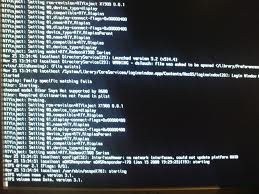
Error- Mac Startup Disk is Full You Need to Delete Some Files

Are you getting the below error message on whatever operations you are trying to perform?
Error - "Your Startup Disk is full. You need to delete some files"

Although, you deleted many unwanted files from the hard drive and there is enough space out there, still you keep receiving the error message. Moreover, after certain occurrences of the problem, the system hangs infinitely and you fail to access any data from the drive. In such situations, if you do not have a valid backup of your data in the hard drive, you need to take the help of any third party software to recover Mac data.

It is needless to speak about the advanced features and robustness of Mac. Macs are so neatly designed that many users even believe up to the extent that their Mac will never go wrong. Unfortunately, the actual fact is that there are situations, when your robust Mac also goes down, making all your data in the system hard drive completely inaccessible.

There are a number of reasons which are responsible for the inaccessibility of precious data in the Mac hard drive. Among them, some of the most prominent ones include file system corruption, operating system malfunction, contradiction with newly installed hardware/software etc.

All these problems are indicated by the inaccessibility of data in the hard drive, following  some unusual error messages. In the above discussed problem, while trying to save a new file on the disk, Mac first flashes the error message - "Your Startup Disk is full. You need to delete some files". Sometimes, the error message may also seem weird as it appears, while trying to delete a file or run an application. The error message does not allow you to perform any operation, including opening, moving, deleting, copying of files. Moreover, even if you free a GB or two memory from the hard drive, the error message keep popping up.

This indicates that the problem is not with the available breathing space in your Mac hard drive, rather something related to file system. Mac provides an inbuilt utility, 'Disk Utility' to check and repair various disk errors. Here, you can connect your Mac hard drive to another working machine and run Disk Utility on the troubled hard drive. If the problem still persist, you can also try running the 'fsck' command line utility, which is meant to resolve file system related problems.

However, there are certain instances, when the Mac disk has got severely corrupted and both Disk Utility as well as FSCK utility fails to respond. In such circumstances, you can still recover your precious data by running any Mac data recovery software. These software are completely reliable and with highly interactive graphical user interfaces, quite simple in use.

Thursday, March 1, 2012

Dealing with Catalog B-Tree Corruption in Mac OS X to Perform Successful Data Recovery

I recently got Mac OS X and was still a newbie to its file system organization. In the beginning, everything looked fine and I was very happy to use my Mac machine. I copied all the important stuff (i.e. Word files, presentations, and other data) to the new hard drive.

I was using PowerMac G4. But one thing that I noticed lately was horrible. My system had been locking up frequently. I decided to repair permissions and then verify the disk. But the verification process ended up abruptly giving me these errors:

"Invalid extent entry"
"Invalid catalog record type"
"underlying task reported failure on exit"

On rebooting the system, I was greeted with another one stating:

“Reserved fields in the catalog record have incorrect data”

I was screwed up and uncertain whether my problem was disk related or data related. I read something about the catalog records and their role in HFS file system.

As any other storage device, Mac drives are divided into one or more volumes. These volumes consist of files, directories, directory threads and file threads. Mac OS maintains a catalog record for each item stored on the volume This catalog record contains information about the respective item and is placed in the on-disk catalog B-tree. The Finder application searches the catalog B-tree to locate files in the directory.

There is an identification number for each file and directory that very much resembles an inode number in the Unix file system. Each file or directory is recognized by its parent and thus named using the parent’s identification number. This name is used as a search key to the catalog B-tree of the volume.

If the catalog records get corrupt due to some reasons like software application malfunctioning, system crash, etc., all files stored on the Mac hard drive would become inaccessible. I realized that I could be facing a similar issue. Since I was desperate to quickly recover all the lost data, I downloaded and tried the demo versions of various Mac data recovery tools.

This Mac Data Recovery Software was exceptional, It recovered all of my lost or deleted data within minutes, if not seconds. The software also supports recovery from removable media, such as USB drives, memory cards, iPods, etc. Moreover, it is compatible with all Intel based Mac and Power PC.

Tuesday, November 29, 2011

When Disk Utility and FSCK Fail to Respond

Working on your Mac, you may have encountered situations, when the system hangs infinitely at the boot screen and fails to start-up. Following such an incident, all your valuable data stored in the system hard drive becomes completely inaccessible.

Among many possible reasons, one of the mostly encountered one is – ‘incorrect settings in the file system privileges’. However, even under such critical situations of data loss/inaccessibility, any powerful Mac data recovery software can easily help you recover all your data back.

Even with the strongest anti-virus and anti-spam protection, the system gets infected by viruses and/malwares. Virus or malware infection, file system corruption, damage to the operating system or instances of unexpected system shut down cause corruption to the Mac file system.

Resolution:

There are various utilities (Disk Utility, FSCK etc.) to repair the damaged file system and recover the inaccessible data back from the troubled media. Below options will give you the idea of running these utilities:

• Boot the Mac system in safe mode and continuously press the ‘SHIFT’ key, while starting-up.

• If you failed to boot the system in safe mode, run ‘Disk Utility’ from the Mac OS X installation disc. Try to boot and while booting, keep pressing the key 'C'.

• Choose the tab, ‘First Aid’, under Disk Utility and select the corrupt Mac volume. Click ‘Repair’.

• If Disk Utility fails to repair the damaged volume, run ‘fsck’ by typing /sbin/fsck –fy from the command prompt.

But, if there is severe corruption to the volume, even FSCK fails to respond and exits, without any operation. In such a situation, when you failed to resolve the problem with Disk Utility as well as FSCK, you do not have any other choice, except formatting the partition/volume and restoring the lost data from backup.

However, if you don’t have any backup or due to any backup server issue, you failed to access the backed-up data, then use any Mac recovery software to Recover Formatted Mac Drive back. These data recovery Mac utilities thoroughly scan your formatted media and successfully recover the lost data back. Most importantly, these utilities are completely read-only in performing the recovery operations and retrieve the lost data, without any change or modification in their original format.

Thursday, May 26, 2011

File System Corruption in External Mac Hard Drive


Sometimes when you unplugged your external hard drive without any proper shutdown, next day you start again plugging you external drive it would not be recognized and your Mac can not read data from external drive. You tried to fix it by using another USB, Checking the preferences or setting PRAM.

Unplugging or powering down the system when it was in a running condition may corrupt the file directory and eventually data loss may happen. The problem could be worse when you do not have a complete backup of your data or an improper backup which leads into the lost of your important files, documents, pictures and videos.

Using Disk Utility which is an inbuilt utility in Mac can help you by repairing the permissions and rebuilding the file data structure. However most of the time when the file got corrupted or damaged it becomes impossible for disk utility to repair the files.

This problem occurs due to affected system metadata structure, hard drive profiles, system files and library files. This situation may also occur due to node structure corruption or file system corruption. Also the problem could be due to the disk data structure corruption and thus Mac Recovery is required to scan the drive and extract all of the data from it.

Always Backup via Time Machine or Clone your Drive to avoid any data loss circumstances. Another option is to reformat your hard drive which means erasing your all data which is not preferred resolution. Try using a Mac data recovery tool which could atleast help you to recover your data before any disk initialization. You need to keep a second hard drive as a destination drive to save your recovered files which acts as a backup in future

Monday, February 21, 2011

When Disk Image Gets Corrupted in Mac


In Mac the disk image is a file that contains all of the contents and the structure of your storage device. Creating disk image is the most convenient method of backing up your precious data stored on the hard drive. There are several different file formats used to create the image of hard drive in Mac and .DMG is the most popular among them.

A .DMG (short for Disk Image) file allows you to have safe password protection and file compression and thus serves both file distribution and security functions. When you open the .DMG file, it is mounted as a drive in Finder. You can easily create .DMG files using tools that are included in Mac OS such as Disk Utility in Mac OS X 10.5, 10.4 and 10.3. You can also manage the .DMG files through command line using hdiutil tool.

Creating disk image is the best option to prevent data loss but sometimes when you try to mount the disk image for accessing data from it, you might encounter the following error message: "The disk image you are opening may be damaged and could damage your system. Are you sure you want to open this disk image?"

Mac OS X detects the damaged disk image before mounting it as the damaged image could results into the data loss. In such situations, you can not restore your data from the .DMG file and thus you need to go for Mac Data Recovery to fix the problem. Mac Data Recovery is the process of scanning your hard drive for extracting the missing, lost or inaccessible data from it.

It is potential in most of the data loss situations and helps you to save you business critical and personal data. You can perform Mac Data Recovery in an easy, safe, quick and automated way using powerful and advanced Mac Recovery software such as Mac Data Recovery. This Mac Recovery software is capable of fixing most of the logical Mac data loss situations.

Wednesday, February 16, 2011

Recover Data from Unbootable MacBook

You have your Mac in configured status but sometimes when you start your MacBook, it does not boot. All you see when you press power button is the gray screen with a spinning wheel and an Apple logo. This problem generally occurs when you change the system preferences.

If you have changed the system preferences incorrectly before shutting down your MacBook, you may face such kind of behavior. In such situations, all of your precious data becomes inaccessible and thus you need to fix it as quickly as possible.

You can try following things to solve out this problem:

Perform Safe Boot by pressing shift key during startup.
Boot your system in Single User mode by pressing ‘command + s’ keys.
Try to boot your MacBook in Verbose mode using ‘command + v’ keys.
Use Disk Utility from Mac OS X Install disk to verify the drive.

If any of the these solutions does not work, then you need to go for Mac Data Recovery. It is the process of scanning your Mac hard drive and extracting lost data from it.

Mac Data Recovery can easily be performed using Mac Recovery software. Most of the Mac Data Recovery software are downloadable from Internet or come in box version that requires another Mac system to install the software and connect your hard drive to it for scanning and recovering data.

If you do not have another Mac computer, they using these software is not possible. In such situations, you should go for boot DVD of Stellar Phoenix Macintosh Data Recovery software.

You need to just boot your MacBook using boot DVD and after software’s License Agreement you will be directed to recover options screen. This Mac Recovery software is very easy to use and performs safe Mac Data Recovery due to read-only and non-destructive conduct.

Wednesday, February 9, 2011

Mac OS X Refuses to Boot in Safe Mode


Mac OS X operating system has various booting modes, which include Normal boot mode and Safe boot mode. Safe Boot is a special system troubleshooting boot mode, which is available with Mac OS X 10.2 and later versions. If your system is not booting up properly and you are unable to access your precious data, Safe Mode may help you. However, in some situations, it may not help you fix the problem and you run across data loss situations. At this point, Mac data recovery becomes need of hour.

When you boot Mac OS X system in Safe Mode, the operating system disables fonts, compels directory check, loads only the required kernel extensions, disable startup items, and login items. It helps the operating system boot properly and gives an option to resolve the problem. Mac OS X operating system starts automatic system checking and repair when you boot the system in safe mode.

Under some situations, your Macintosh computer may shutdown improperly when you try to boot it in Safe Mode. In such cases, the system remains unbootable and you can not extract your significant data from it. The problem usually occurs if any of the Mac data structures is damaged.

In case the boot process fails, you need to format the Mac OS X hard drive and reinstall the operating system. It replaces the damaged or faulty data structures of your Mac machine.

Hard drive formatting can fix most of the hard drive problems. The newly installed operating system is usually free from all kinds of data structure errors. However, the major drawback of this process is complete data loss. Formatting removes all the contents of the disk. This behavior puts you in need of Mac data recovery solutions.

At this point of time, you are required to restore lost data from the most recent backup. Backup is the most efficient Apple OS X recovery solution. In order to ensure absolute Mac file recovery, you must have an updated and valid backup in place. An old backup can cause serious problems.

When all your attempts fail, Mac recovery software becomes essential. The third-party applications are particularly designed to perform thorough scan of entire disk using advanced scanning techniques.

Such tools are incorporated with interactive user interface to let you recover lost data in a safe way, without demanding sound technical skills

Wednesday, February 2, 2011

Catalog File Corruption in Mac

Catalog File is a Mac system file that is used by HFS (Hierarchical File System) File Manager to keep information about hierarchy of the files and directories on Mac volume.

The catalog file is ordered as B-tree file and thus consists of header node, leaf nodes, index nodes and map nodes (if necessary). The allocation block number of first file extent of catalog file is stored in Master Directory Block or MDB.

When you mount the volume, the stored information is copied in the volume control block of that volume. From header volume, File Manager could access node number of the root node of catalog file and from root node, File Manage could find whole catalog file.

A unique CNID (Catalog Node ID) is assigned to the every node of catalog file. For files CNID is file ID and for directories its directory ID. For a given directory or file, the parent ID is CNID of parent directory. When operating system accesses files or data from HFS file system volume, it first interacts to the catalog file and gathers complete information about the hierarchy.

But sometimes when you try to access data from your hard drive, you may get an error message similar to the following:

“Verifying volume
Checking HFS Plus volume.
Invalid record count
Catalog file entry not found for extent
The volume needs to be repaired.”

After this error message, you can not access data from Mac volume and thus face the critical situations of data loss.

You may encounter this problem because of corruption to the catalog file. Due to same, operating system can not file the required information to read data from volume. To fix this problem, you need to go for Mac Data Recovery. You can carry out Mac Data Recovery in an easy and straightforward way using third party Mac Recovery software.

Thursday, January 13, 2011

iMac G5 Does Not Boot Up and Data Loss Occurs

Apple offers a wide range of desktops and laptops to fulfill your personal as well as business requirements. Among all desktop series, iMac is the most popular and widely used one. It has a bunch of features and stylish look. This computer is designed for both home and office users.

iMac has four major modes, such as iMac (Intel-based), iMac G3, iMac G4, and iMac G5. However, in some situations, iMac G5 may crash and make your precious data inaccessible. At this point, you need to opt for Mac data recovery solutions to retrieve your inaccessible data.

iMac G5 employs PowerPC process architecture. Other system specifications of iMac G5 include V .92 modem, 10/100BASE-T Ethernet port, and video-out port. However, under some situations, iMac G5 might stop responding at startup and cannot boot up. This problem usually occurs due to issues with operating system and put you in need of Mac recovery solutions. The problem may also occur due to hard drive or external hard drive issues.

Find out cause of this problem-

To check out whether the problem is caused by external hard drive, you are required to first disconnect all Ethernet, USB, and FireWire devices. Then reconnect all devices one bye on to your iMac and reboot the system. If you face the same problem after connecting a specific device, then it has to be replaced. The problem can be due to faulty cable as well.

Corruption to system software can also lead to this problem. At this point, boot your system using Mac OS X installation disk. If your computer starts properly, then the problem is caused by corrupt operating system and fresh installation of Mac OS X is required.

If your system is still unbootable and hard drive is invisible, the disk might be damaged. In such situations, you can try repairing the hard drive using Disk Utility to perform data recovery Mac.

If none of the above methods work, then you will have to replace the hard drive. But in this case, Mac recovery is required to extract data from damaged disk.

You can easily perform file recovery Mac using Mac file recovery software. Such Apple OS X recovery applications are designed to recover Mac data in all data loss situations. The HFS+ recovery tools are totally safe and easy to use.

Wednesday, January 5, 2011

Time Machine Backup Fails to Restore on Mac OS X 10.6 Snow Leopard

Like all other computer operating systems, Mac OS X 10.5 Leopard and 10.6 Snow Leopard also include a data backup utility, known as Time Machine. It facilitates you to backup selected files and restore them whenever required. It enables you to schedule the backup to automate the backup process.

You can backup data to an external Time Machine drive to ensure absolute safety of your significant data. The backup helps you prevent needs of Mac data recovery solutions.

The Time Machine utility is not compatible to the Windows formatted hard drive, external AirPort disk, iDisk, and any mapped network disk that uses a file sharing mechanism other than AFP (Apple File Protocol). Due to the same, Snow Leopard may not recognize these backup disks and restoration process fails.

When you attempt to perform Mac recovery using the Time Machine backup, it throws ‘109’ error during the process and Mac file recovery process fails.
Root of the problem

This behavior of Mac OS X 10.6 Snow Leopard operating system occurs when you backup data to an external hard drive or a network drive that is connected to the AirPort Extreme, which are not compatible to Time Machine of Snow Leopard. Although, Airport Extreme might seem to work with the Time Machine, however it is not supported.

The Time Machine works only if the network server uses AFP file sharing mechanism and both the networked and root system must have Mac OS X 10.6 Snow Leopard operating system installed.

Resolution

You can sort out this behavior by replacing AirPort Extreme disk with Time Capsule. In such situations, the below workarounds may also enable AirPort disk to function-

Rename Time Machine disk and AirPort computer to small and un-complex name.

Uncheck option related to backup data at low battery power in the laptops.

Make non-network location for adding the Time Machine device interface to it.

In case you lose your significant data and the Time Machine backup fails to restore, data recovery Mac becomes need of hour. You can recover Mac files using advanced file recovery Mac applications.

Mac recovery software enables you to thoroughly scan entire hard drive and recover Mac data in all data loss situations. The Apple OS X recovery software come equipped with simple graphical user interface to ensure easy Mac data recovery.

Stellar Mac Data Recovery is the most efficient Mac recovery utility to recover Mac files from HFS, HFS+, HFSX, HFS Wrapper, and FAT file system volumes.

Sunday, December 12, 2010

Logical Data Recovery on Mac OS X

When you need to get your lost files back, you will have to use a data recovery software which is supportive to the combination of your operating system and file system. All of the computer operating systems have different data structures; file system and data storage management mechanisms.

Mac operating system uses HFS, HFS+, HFSX, HFS Wrapper file systems. There is no set method of data recovery on any of the operating system. The data recovery software could be the same for different data loss cases of one operating system but the features, which you need to use, may be different according to the reason of data loss.

If you are facing the data loss problem with your Mac system and want to get all your data back, the first step to take is the selection of an effective and powerful Mac data recovery software. There is a wide range of data recovery software for Mac available in the market.

All of these Mac recovery software have a unique set of features and come with different price tags. An intensive scan of the affected hard drive is really significant to completely recover all of the data from the hard drive. You should go for a data recovery Mac software which is capable of performing the same in an effective fashion. Having an easy to use and simple user interface is also the must for a Mac data recovery software.

The Mac recovery software, you are going to opt for, must be simple enough to use without having any prior technical knowledge. The last and the most important thing that you should look for in a Mac recovery software is the file system and the file version support. The software should support all the file versions and file systems which are usable in Mac. After selecting an appropriate data recovery Mac software,

The next step is to find a healthy Mac computer, to install and run the software in it because installing the software on the same computer could make the data irretrievable. After installing the Mac data recovery software, attach the affected hard drive to it and scan it to end up with absolute data recovery.

Monday, November 15, 2010

Mac Hard Drive Failed to Mount

Sometimes you may find that your external hard drive mysteriously gets un-mounted by your Mac. All this happens suddenly and
may leave all of your data inaccessible. In this case, you won’t hear any strange sound from your hard drive which means that the hard drive is physically intact.

When you plug the drive into the port, you may get any of the following error messages:

“Mount: wrong FS type, bad option, bad superblock on /dev/hdb1,
Missing codepage or other error
In some cases useful info is found in syslog- try dmesg tail or so”

Or

“Unknown device”

It gives two options to “Initialize” the drive or “cancel”

As the first error message suggests, the problem has occurred due to the File System errors, Super block corruption or due to any system file or directory deletion. It is a grave situation for the business owner or general home user to lose the precious and significant data.

It could lead to several catastrophic problems and in most possible case- the business destruction. In order to save your business, recovering the lost data becomes the need of hour. It can’t be eliminated. The data recovery is the process of getting your lost data back using special tools called data recovery software for mac.

The data recovery software which are usable in this particular case are known as Mac data recovery software. These are the powerful third party applications specially designed to recover your lost data from the affected Mac hard drive.

Mac recovery software provide complete data recovery Mac solutions and they are powerful enough to recover lost data in all of the cases. These software are very easy to use and don’t require high technical skills to perform data recovery Mac.

Data recovery Mac software is very easy to use and has an interactive user interface with rich graphical support to provide easy and quick Mac data recovery. The powerful scanning algorithms are used by the Mac recovery software to perform in-depth scan of the affected hard drive and perform absolute Mac recovery.

Friday, November 12, 2010

Removing ‘etc’ and ‘var’ Directories in Mac OS X Causes Mac Data Loss

When attempting to start up Mac OS X, you may come across one or more of the following symptoms:

Your Mac stops responding during startup
Setup Assistant rematerializes
BSD (Berkeley Software Distribution) commands which access files in var and etc fail

A message box appears with the message which contains: “/etc/master.passwd: no such file or directory.”

After any of these situations, you Mac refuses to start and you can’t access any of the data stored on your hard drive. The possible reason of this behavior is the deletion of “etc” and “var” directories. These directories appear when you start your Mac and they should not be removed for proper working of your system.

Etc- It contains all of the configuration files of your Mac system including both scripts for actually performing several tasks as well as documents specifying the configuration information. It is the most important data structure file which is used by the HFS series of file systems.

Var- This is the system directory which stores variables and library files produced by the Mac operating system to control the processes. It also stores a fair bit of the configuration information.

After deletion of these directories, Mac operating system won’t be able to retrieve the required files to start the operating system and will refuse to boot up. To work around this issue, you need to install a fresh copy of both these directories which is possible by formatting the drive and reinstalling the operating system.

Though this method solves the issue and it won’t occur in future but also wipes the data stored on the hard drive and leads to the possible data loss problems. During formatting of the hard drive, all of the data stored on it will be removed. It is the most critical situation for a Mac user which requires Mac data recovery to get all the data back.

Mac data recovery is feasible through the use of Mac data recovery software which are capable of scanning the drive and retrieving data and information from it.

Wednesday, November 10, 2010

Disk Initialization in Mac OS X

Disk Initialization is the process of making a hard disk drive usable. This process is generally followed with the new hard disk before installing an operating system. In Macintosh computers, it has there independent steps:

Disk formatting
Disk verification
Disk zeroing

After initialization, the disk becomes usable and you can install a fresh operating system on it and can use it. There are some situations, where you need to initialize a disk due to some system problems. These situations include if the directory structure of the disk has damaged and the disk can’t be accessed in its current situation.

It can also occur if the operating system has some problems and your system randomly freezes. Unfortunately, if any of these situations occurs, you need to initialize the disk. It can be done with the help of Disk Initialization Manager. It is the part of Mac operating system that lets you erase all of the contents of the hard drive.

It gives a standard user interface to initialize and naming the disk. Disk initialization is a very easy process and can be performed effectively with the help of Disk Initialization Manager. You can do it without having any sound technical knowledge and very quickly and efficiently.

After successfully completing the Disk Initialization, you will get a disk free from any problems or errors. It is correct that disk initialization will fix all of your system related issues. But, have you ever thought about the other side of the coin?

You most precious data stored on the hard disk will be wiped out with the errors of the hard drive and you will have a disk without your data. It is a very catastrophic situation for the user. It will cause the serious nightmare of data loss. In such circumstances, the recovery of the lost data becomes a very important task to save you and your business.

If the lost data is business critical then recovery should be performed as soon as possible. But there is no need to worry about your lost data. You can get your data back very easily with the help of data recovery software Mac. Data recovery software are the applications that are specially designed to meet the data recovery requirements of different users.

For Mac computers, these data recovery software are known as Mac data recovery software. There may be a wide variety of Mac data recovery software existing in the market but selecting the appropriate one is very important.

Friday, October 1, 2010

when the Disk utility fails- The volume 'Macintosh HD' needs to be repaired Error

While using the Logic studio on your Mac OS X, there occurred an error and the Logic studio application crashed. Thereafter, the colored wheel appeared on the screen and the system almost hangs out there unusually for several minutes. You rebooted the system and found the blank grey screen with a flashing question mark.

You plugged out the peripherals, such as external sound cards, printer, external modem etc and rebooted the system to find the flashing question mark again. All your data lies inside the Mac hard drive and the problem occurred so suddenly that you are quite clueless about the issue and have to think for some Mac recovery utility to recover back the data.

To your dismay, in the above situation, if you try to reboot your Mac system from the installation disk and try 'First Aid' from the Disk Utility in order to verify and repair, you may find the following errors subsequently:

'Verify and repair volume 'Macintosh HD'

the disk 'Macintosh HD' could not be unmounted”

“The volume 'Macintosh HD' needs to be repaired

Error:filesystem verify or repair failed”

Cause:

Before cursing negligence and any such things, you must admit that there can be a number of reasons behind the issue, that you can count. It can be a bad RAM, bad sectors on the hard drive etc. Moreover, a system or application crash can sometimes corrupt the nvram or affect the journal or directory entries of the file system.

Resolution:

1. Try resetting the nvram and reselect the startup volume. The procedure changes certain system preferences like system volume, mouse speed settings etc.

2. If the the above measure fails and the Disk utility couldn't resolve the issue, then you are left with one choice to reinstall the operating system with the option Archive & Install.

3. If the the above also fails, it is the Erase & Install option that you have to opt for.

The Erase & Install option will wipe all the data from your Mac hard drive and you have to recover it from the backup. If you have not taken backup for for all your data or failed to restore from backup, then using a Data Recovery software Mac can do the better recovery.

Tuesday, September 28, 2010

Mac recovery solution to recover lost Pages files

'Pages' is an application to facilitate word processing and doing page layout in Macintosh operating system based computers. This utility is a product of Apple and is designed as a part of 'iWork' productivity suite. Apple has launched Pages with a number of Apple designed templates, including posters, resumes, letters, outlines etc. The product has been marketed as an easy-to-use tool for home users and is advanced enough to resist basic computer errors. However, in this digital world, no application is absolutely flawless. Hence, any problem related to data loss or inaccessibility in Pages utility, pushes you to look for Mac recovery.

A brief about Pages:

With more than 140 Apple designed templates, Pages is a wonderful word processor and page layout utility. Pages facilitates on click access to the previously used common functions as well as accessing of objects. With the word processor mode, you can have footers, foot notes, headers etc and with page lay out mode, you can you can position the objects on the page. Moreover, a special inspector window help you view all the formatting options at just one place. This is not all, the advance media browser gives you a quick and easy access to itunes, iphoto, imovies etc.

There can be some minor to complex causes, for which data in Pages can be lost. It may be accidental or intentional deletion, problem due to virus/malware intrusion, formatting, file system corruption or any hardware or software malfunction. As people used to store many personal as well as professional data in the Pages files, loss, corruption, or inaccessibility of the same raises huge panic.

The value of data always weighs higher than any troubled storage device as you can replace the device with another, however, the lost data may never can be recreated. Hence, in the above situations, the only thing that will circle around your head is to recover the data first. If you have been a bit serious with your data, you have taken backup and you can restore your lost Pages files from the server. However, sometimes, the lost data is something that has been created after the last backup schedule or you are facing even more problems restoring data from the backup, then Mac data recovery software can drag you through.

Mac recovery software are intended to recover any of your files, folders, directories from a Macintosh based operating systems, irrespective of the data loss situations. Moreover, don't thing that you have to invest a fare deal of time to study the software. you can have a detailed instruction set in these software and you don't have to ponder for a second in the middle.

Stellar Phoenix Macintosh Data Recovery is a Mac recovery utility that can recover all most any file from your Mac based system. The utility supports a vast range of files and is compatible with Macintosh OS X 10.3.9 and later versions.

Saturday, September 4, 2010

Apple MacBook Air Data Recovery

Apple has MacBook air was introduced in January 2008 with high performance and speed. This was latest laptop from Apple in the MacBook family. It is the thinnest laptop of the world. It is based on mobile technology and has a unique hardware configuration:

Operating System- Mac OS X 10.5 Leopard

Hard Drive- 80 GB Seagate hard drive with 5200 RPM speed

Processor- Intel Core 2 Duo

RAM- 2000 MB

According to the hardware configuration in this release, the system works very fine. Like other systems, there are some problems with this MacBook air also. The main problem is freezing and crashing of the system. Sometimes it freezes after a regular time interval of 10 to 15 seconds.

It shuts down the CPU core and the problem generally occurs due to overheating of the system. The problem occurs when your run two or more programs at the same time. In these situations, the system may crash. Often, this problem occurs due to software reasons when you run more application at the same time, especially Xslimmer.

The problem may also occur due to some kind of hardware problem. When this problem occurs, you have to force the system to restart. In this case, your operating system may get corrupted or the data stored on your MacBook Air hard drive may become inaccessible. To resolve this issue, you need to format your hard drive and reinstall the operating system.

You should reinstall the application programs also. But reinstalling the hard drive is never safe as it requires formatting the primary volume of your hard disk. In this situation, things can go wrong and you may loose your important and precious data.

This situation occurs, generally when you have stored the important data on the primary volume or you haven’t partitioned the hard drive. It can create very serious problems for you and can put you in fix. But there is no need to worry about all these data. The data is still present on your computer hard drive and you can recover these data with the help of Laptop data Recovery Mac software solutions.

For Mac computers, this solution is called Mac data recovery software. Macintosh data recovery software also called Apple Recovery software are the application programs specially designed to recover the lost data from Mac computers. These software can help you in almost all possible cases of data loss including hard drive formatting, accidental deletion, operating system corruption and virus attack.

Tuesday, August 17, 2010

While Using Boot Camp Deleted Mac OS X Volume


Boot Camp is the utility in Mac OS X which assists Mac OS X users in creating a partition and installing Windows on Intel-based Macintosh computers. Although it is designed for non-destructive repartitioning of hard disk, but sometimes it might work different from what is expected. According to many Mac OS X users, Boot Camp has often been found to corrupt or delete Mac OS X partitions, making it impossible to access the data by normal means.

Running fsck or Disk Utility doesn't bring any affect and thus the only option left with the users is to recreate the lost partition. Doing so can no doubt is a suitable workaround of this problem, but data restoration is possible only if you have a valid data backup in place or use a Mac Recovery Software. After a general description, here is a specific problem that narrow downs this issue.

Suppose you as a Mac OS X user uses Boot Camp to create a Windows partition. After the installation is successfully done, when you view Mac OS X partition(s), they appear to be missing. More specifically, just a single partitions that doesn't correspond to any of the existing partitions. You can try solving the issue using 'Disk Utility' and/or 'fsck'.

Also, booting up the computer while holding the option key might help.Reportedly, many Mac OS X user cannot view their partitions on trying to install a Windows version that Boot Camp doesn't support. Most of these problems have been reported when Windows XP SP1 is even tried to be installed. Service Pack of Windows XP is not supported by Boot Camp, so you should instead try to install Windows XP SP2 or later.

This is the case of partition map corruption, so the prime solution to make your Mac workable is to recreate the lost partitions and restore from backup. In cases, when you cannot restore from backup, running a Mac File Recovery utility can aid in recovering all lost files and folders. Mac Recovery Software are exclusive products that can scan your crashed Mac drive and recover all the possible information safely.

Friday, July 30, 2010

Tips to Solve Blue Screen at Startup in Mac OS X 10.6

Blue screen error is one of the most common error among Mac users.What can be more frustrating than finding your Snow Leopard not starting up. Instead of the Finder, a blue screen appears and you have no access to important data that you want to access. No doubt, the situation is annoying, but it can turn to be a simple problem if you apply some Mac Recovery fixes to make your Mac bootable. Before coming to the solutions, let's consider a scenario depicting the discussed problem.

When you try to start your Mac OS X 10.6 Snow Leopard computer, you might find it not starting up. A blank blue screen displays and no further startup process seems to occur. In place of blank blue screen, you may also see a blue screen with a colored pinwheel. Since the boot process doesn't proceed, you have no data access. Most of such problems occur because there lie few corrupted or incompatibile applications or startup items that might be preventing your Mac OS X 10.6 Snow Leopard to start.

This same issue has also been observed that if you try to boot your Mac OS X 10.6 Snow Leopard computer from a DVD of another Mac model.In order to resolve the above issue, you should try the following steps:

You should try starting your computer in safe mode. If this works, you can choose Apple menu and then Restart to see whether the computer will restart normally

You can analyze it as the problem due to incompatibile login items if the startup doesn't proceed in spite of that login window asks for a user name and password. You need to remove such login items.

You should start your Mac from its installation disc and use Disk Utility to repair the disk

permissions and startup disk.

If all the above measures fail, the last resort is to use installation disc to reinstall Mac OS X and restore the data from backup.

In case of backup unavailability, you need a Mac File Recovery utility. A Mac Recovery software can help you recovering lost files and folders after any type of logical crash with Mac systems.In this way you will able to save your data and files from disaster.

Monday, July 26, 2010

Mac Journal Corruption and Recovery

In Apple Mac OS X journalizing is the process in which files can protected from any unexpected power outage. The journal keeps all the vital information that Mac computer requires to get back to a previous working state. Serious consequences can result if journal gets corrupted. For instance, it can make a volume unmountable, while rendering the data inaccessible.

We know that keeping a valid backup is an excellent way to prevent data from any lost, either if the backup is not available we can try Mac Recovery. The reason is that you can then safely erase the corrupted volume without fearing of any data loss. HFS Plus is a journaled file system and is thus susceptible to above discussed problems. Below is an error message that can occur in system log of a Mac OS X computer when a HFS Plus volume is corrupted:

Journal corruption usually damage the Mac volume to an extent that it cannot be repaired by Mac OS X built-in utilities. These include the 'Disk Utility' and its command-line utility- fsck. So you must adopt some other methods of Mac Data Recovery.

You can try resolving the given problem by disabling journaling and then re-enabling it again. If you have a backup from which full data recovery is possible, erase the corrupted volume and restore.

It would be more efficient to use a Mac Recovery utility to scan, locate, and recover the lost data. These are easily available products with competency to restore lost or deleted information from Mac disks. Due to their interactive nature, these programs can even be operated by a novice.